



Are More Monitors Actually Making You More Productive in 2026?
Walk into almost any office right now and you’ll notice something. Desks that used to hold one screen now hold two or three. It’s become the default setup, almost a status symbol, and it’s easy to assume that more monitors just means more output. But the research coming out this year tells a more complicated story. Multi-monitor setups can genuinely cut down on the time people lose switching between windows and applications, and some studies point to real productivity gains from that alone.
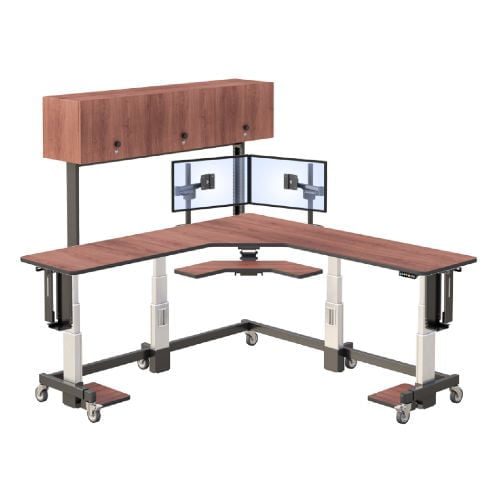
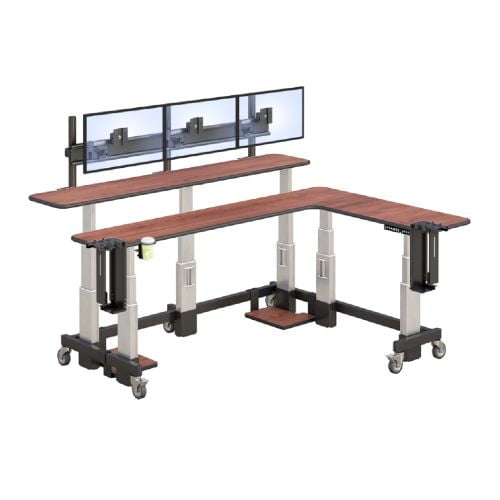
At the same time, other 2026 research shows that piling on extra screens can actually increase cognitive load for certain tasks, and attention tends to fade faster once you’re juggling three displays instead of one. The honest answer is that it depends on what you actually do all day, not just how many screens are sitting in front of you. This guide breaks down what a well-built multi-monitor workstation, like AFC’s dual-level computer desk, actually looks like, and how to figure out whether your job calls for two screens, three, or just one really good one.
What Should You Look for in a Multi-Monitor Workstation Desk?
A solid multi-monitor desk needs enough surface width to fit your screens without crowding, a properly weighted monitor arm system, real cable management, and a base sturdy enough that typing doesn’t make the screens wobble.
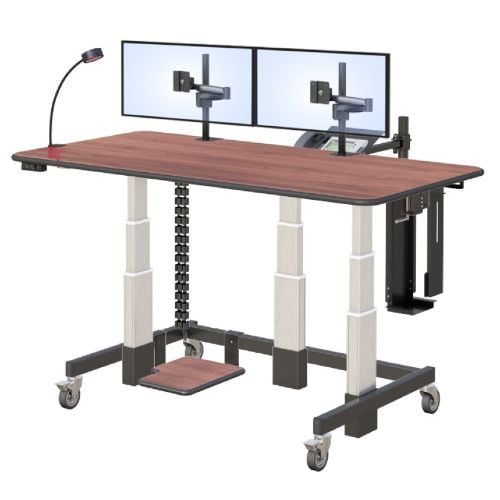
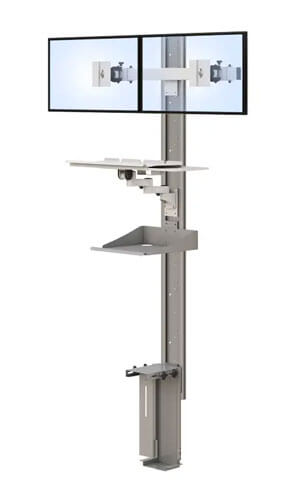
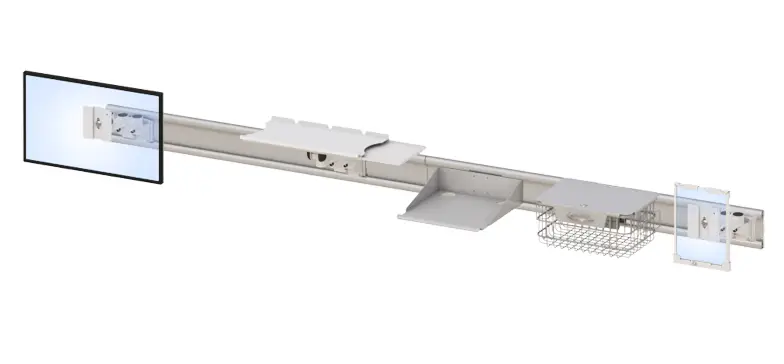
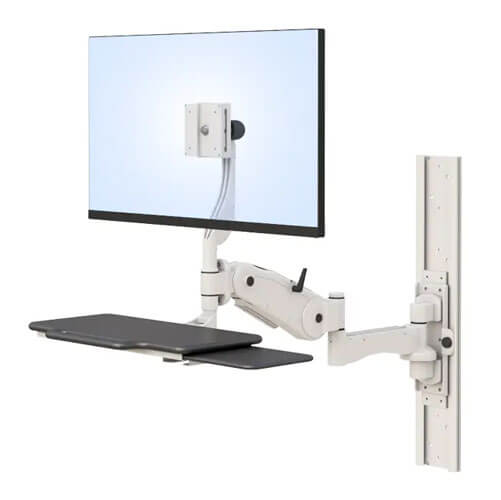
It’s tempting to think any desk with enough surface area will do the job, but the details matter more than people expect once you’re actually using the setup daily. Desk width is the obvious one. A desk built for three monitors needs enough room that you’re not squeezing screens edge to edge, since that forces awkward neck angles. Monitor arms matter just as much as the desk itself. An arm system, which is just a mechanical mount that holds your screen and lets you swing, tilt, or raise it, gives you far more flexibility than a fixed stand that’s locked into one position.
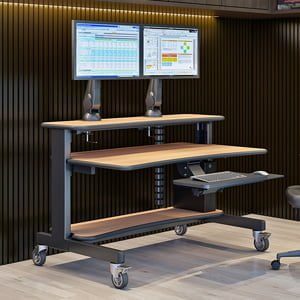
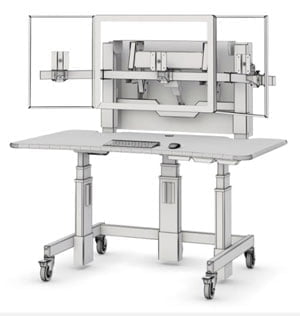
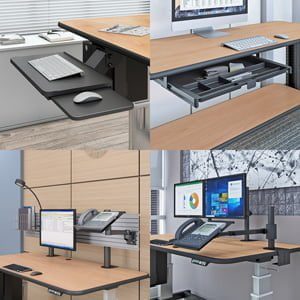
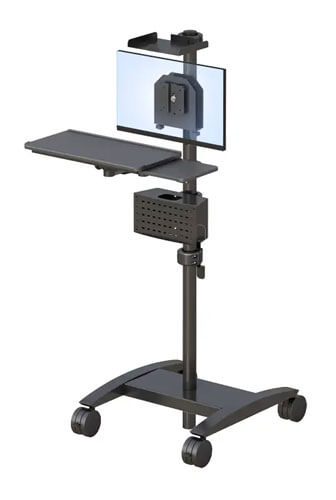
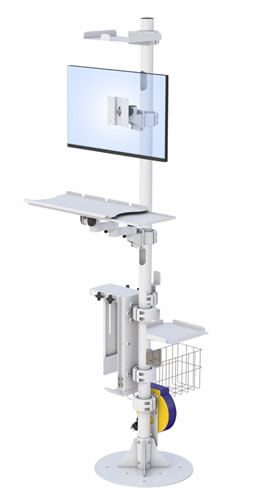
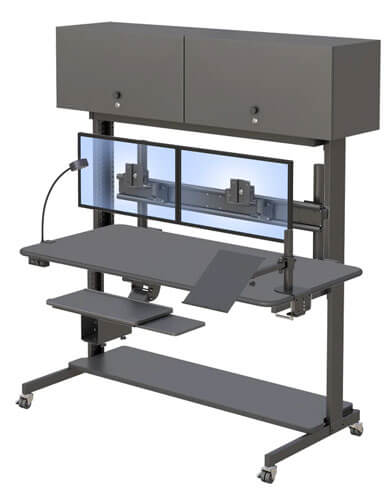
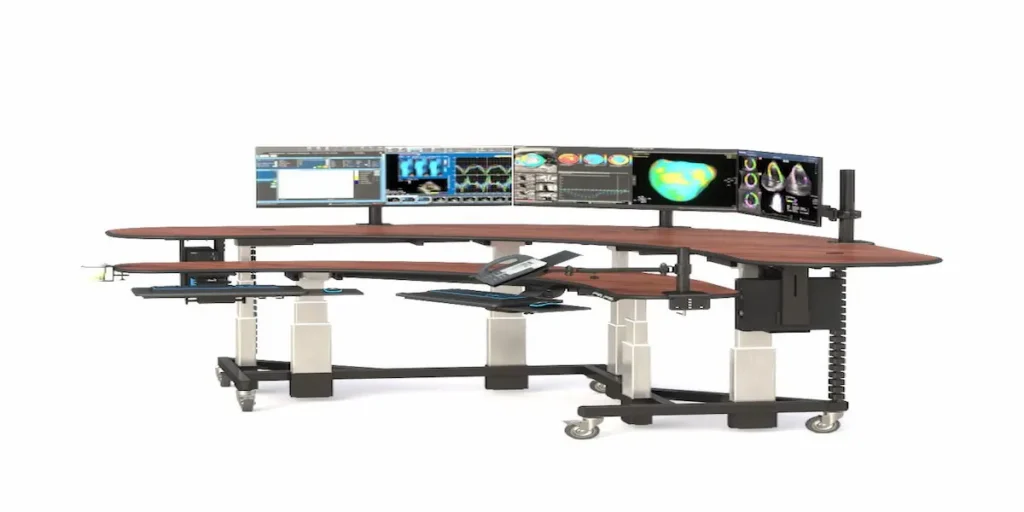
AFC’s ErgoTech desk uses a Z-series arm setup along with a swing-lift keyboard tray, which is a keyboard shelf that raises and lowers so your wrists stay level instead of reaching up to a fixed desktop. Cable management is the detail people skip until their desk looks like a tangle of wires, and a proper cable tray keeps everything routed out of sight and out of the way. Base stability rounds it out. If the desk shifts or wobbles when you type, no amount of screen real estate fixes that problem.
A few things worth checking before you buy:
- Desk width. Make sure there’s enough room for your monitors without crowding them together.
- Monitor arms versus fixed stands. Arms let you adjust height, tilt, and angle as your setup changes. Fixed stands don’t.
- Cable management. Look for built-in trays or channels, not an afterthought.
- Base stability. A desk that wobbles under normal typing pressure will undercut everything else about the setup.
There’s useful research on multi-monitor productivity gains worth a look if you want the data behind the app-switching time savings, since it explains why the gains show up for some roles more than others.
How Many Monitors Do You Actually Need for Your Job?
The right number of monitors depends on whether your work involves comparing multiple data sources at the same time, or requires long, uninterrupted focus on a single task.
This is really the core question, and it’s worth being honest with yourself about it. If your day involves pulling data from a spreadsheet while referencing an email thread and a scheduling tool at the same time, extra screens genuinely help, since you’re not constantly minimizing and reopening windows. That’s why roles like dispatch, admin, finance, and customer support tend to benefit the most from a two or three monitor setup.
On the other hand, if your work is mostly deep, single-focus tasks like writing, legal review, or detailed analysis, recent research actually found that attention can decline faster with too many screens competing for your focus. In those cases, one large, high-resolution monitor sometimes outperforms a cluttered multi-screen setup. Neither answer is wrong. It’s about matching the setup to the actual shape of your workday, not defaulting to whatever looks impressive.
A simple way to think it through:
- Do you reference two or more separate sources of information at once during a typical task? That points toward multiple monitors.
- Is most of your day spent deeply focused on one document, dataset, or project at a time? That points toward fewer, larger screens.
- Has your role changed recently? It’s worth reassessing your setup every so often rather than assuming what worked a year ago still fits.
Browsing AFC’s full range of desks and tables is a good next step once you’ve got a sense of which direction fits your work.
What Does a Well-Built Multi-Screen Setup Look Like in Practice?
A well-built setup pairs the right number of monitors with proper desk width, arm adjustability, and posture support, so the added screens improve focus instead of adding strain.
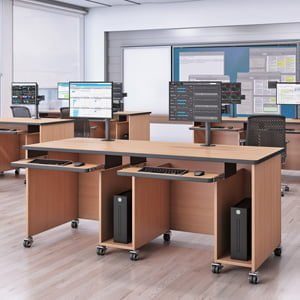
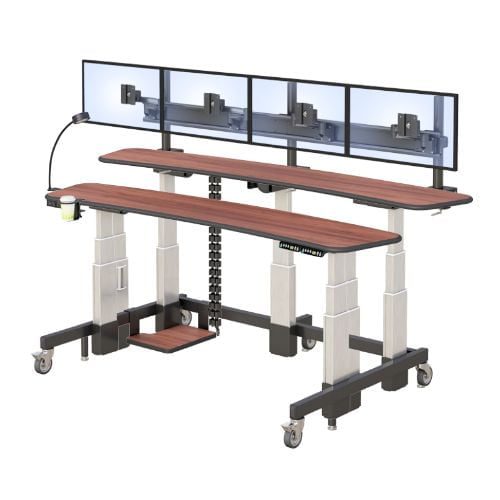
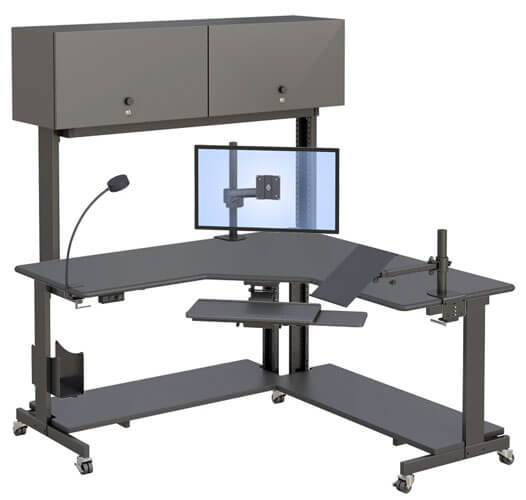
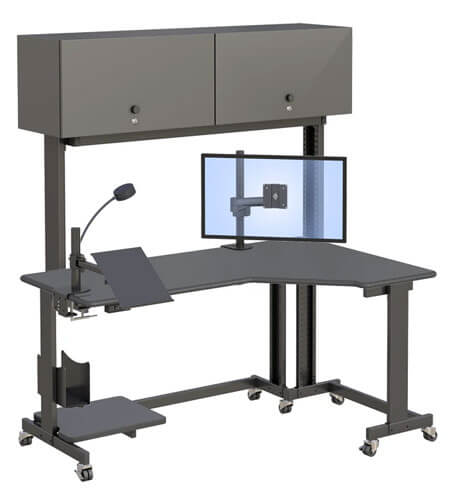
Picture someone managing scheduling and billing across three monitors. Without the right desk, that setup turns into a mess of tangled cables, screens angled awkwardly, and a keyboard sitting too high or too low. With a desk built for it, like AFC’s dual-level design with a swing-lift keyboard tray and routed cable trays, the same three screens become genuinely usable instead of just visually impressive. The desk does the quiet work of making the extra screens actually help rather than just adding clutter.
A few practical steps for setting one up:
- Set your primary monitor directly in front of you at eye level.
- Angle secondary monitors slightly inward rather than lining them up flat.
- Use a keyboard tray so your wrists stay neutral instead of reaching up to a fixed desktop.
- Route cables through a tray or channel so nothing hangs loose across your workspace.
- Reassess the setup every few months as your role or daily tasks shift.
Once the basics are dialed in, it’s worth looking at AFC’s IntelliCart dual-level desk configurations to see how the layout adapts to different monitor counts and work styles.
Frequently Asked Questions
Is a triple monitor setup worth it in 2026?
It depends on your job. Roles that involve referencing multiple data sources at once, like admin or finance work, tend to benefit the most. Deep-focus work like writing or analysis sometimes performs better with one large high-resolution screen instead.
Do more monitors always mean more productivity?
No. Extra screens help reduce time lost switching between windows, but research shows attention can decline faster once you’re managing three or more displays for tasks that need sustained focus. More isn’t automatically better.
What is a dual-level computer desk?
A dual-level desk separates the monitor surface and the keyboard surface into two distinct levels, usually with an adjustable keyboard tray. This layout helps keep your wrists and neck in a more natural position during long work sessions.
Do I need monitor arms or can I use monitor stands?
Monitor arms let you adjust height, tilt, and angle as your needs change, which is useful if you switch tasks often. Fixed stands are simpler and cheaper, but they lock your screen into one position.
How wide should a desk be for three monitors?
Most three-monitor setups need at least 60 inches of desk width to avoid crowding the screens together. Going narrower usually forces awkward angles that can strain your neck over a full workday.