




As Ambient AI Changes Charting, Does the Mouse Holder Still Matter?
Ambient AI is changing how some clinicians document patient visits. Instead of typing every detail during an appointment, a documentation system can listen to the conversation and prepare a draft note for the clinician to review.
That does not make the physical computer workstation unnecessary. Clinicians still use screens, keyboards, and mice to review records, correct notes, place orders, and navigate an electronic health record.
The American Hospital Association describes ambient clinical documentation as one of healthcare’s most significant current uses of artificial intelligence. As the software changes, however, familiar physical problems remain. A mouse can still fall from a folding keyboard tray, hang by its cable, or get left on another surface.
A mouse holder will not transform a clinical workflow. It can solve one small, repeated problem by giving the mouse a predictable storage location when the workstation is not being used.
Why Can a Small Mouse Holder Matter in a Modern Workstation?
A mouse holder gives users a defined place to store a computer mouse between tasks. This can help clear a keyboard tray, manage a wired mouse cable, and leave a shared workstation ready for the next user.
Which Five Problems Can a Mouse Holder Help Address?
Small accessories become noticeable when they are missing. A workstation may have an adjustable monitor and folding keyboard tray, but the setup can still feel incomplete if there is nowhere to store the mouse.
A properly placed holder may help with five common problems:
- Inconsistent storage: Users know where to return the mouse when they finish.
- Hanging cables: A wired mouse does not need to dangle from the tray or rest on an unrelated surface.
- Crowded trays: Moving the mouse into its holder creates space when the keyboard tray is closed or reset.
- Shared use: The next person can find the mouse without searching the room.
- Incomplete workstation resets: The station can be returned to the same basic arrangement after each use.
A workstation reset simply means leaving the computer area organized and ready for the next person. The process may include closing the keyboard tray, returning accessories, organizing cables, and removing personal items.
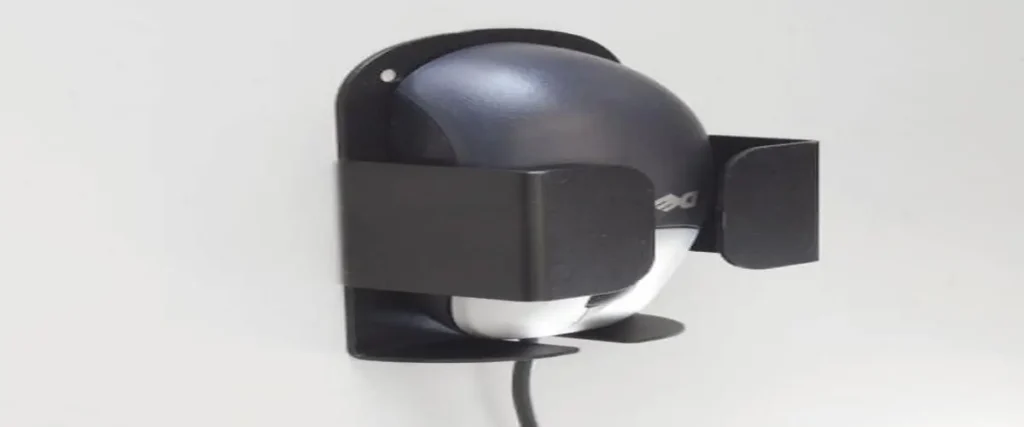
The AFC wall-mounted mouse holder is a metal accessory that measures 5 inches high and 3 inches wide. It includes a lower cutout for a mouse cable and bendable holding lips intended to accommodate different mouse sizes.
These features may help with storage, but they do not guarantee compatibility with every mouse. Vertical mice, trackballs, gaming mice, and specialty medical peripherals can have very different dimensions.
Is a Mouse Holder the Same as a Mouse Tray?
A mouse holder and a mouse tray serve different purposes.
A mouse holder stores the device when it is not being used. The mouse sits inside the bracket until someone retrieves it.
A mouse tray provides a flat surface on which the user operates the mouse. It may slide from beneath a keyboard tray or attach to one side of the workstation.
The supporting keyword “mouse stand” can describe either storage or an operating surface, depending on how a seller uses the term. Buyers should therefore look at the product design rather than relying on the name alone.
The AFC product is presented as a storage holder. It should not be described as a working mouse surface.
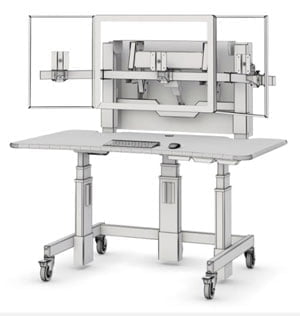
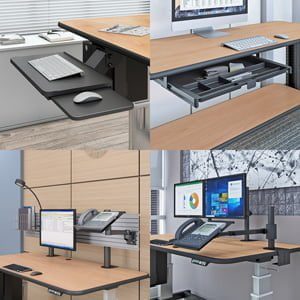
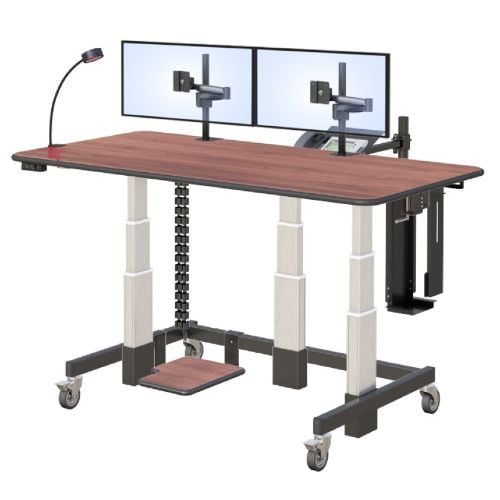
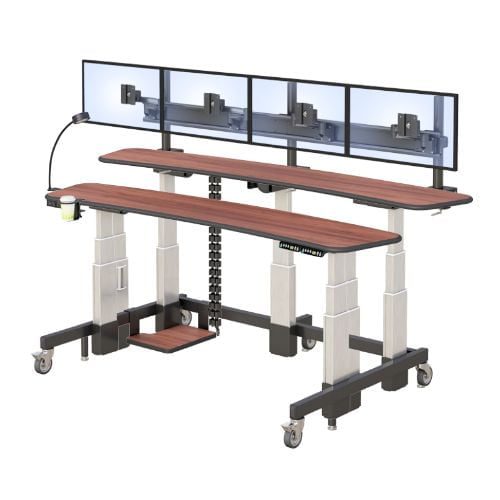
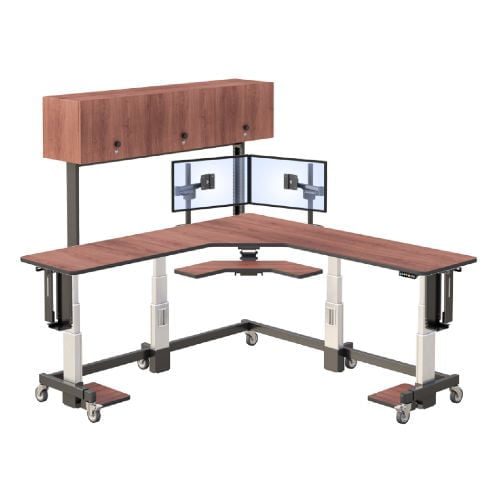
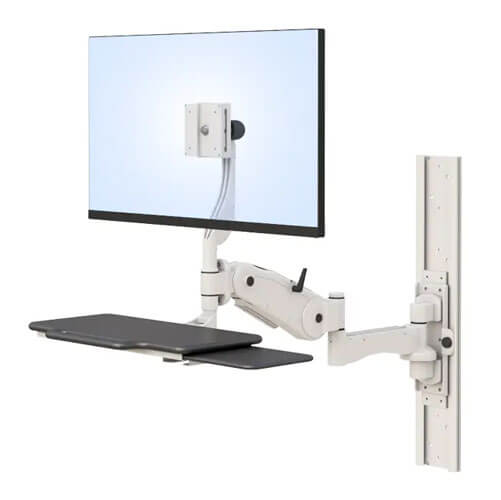
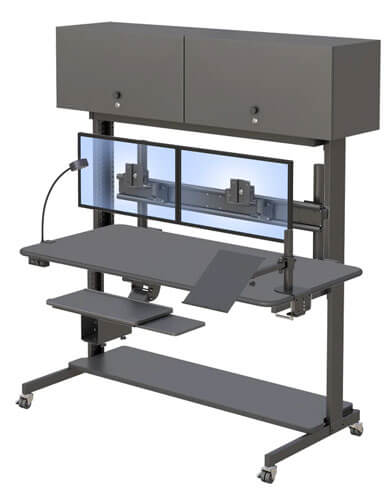
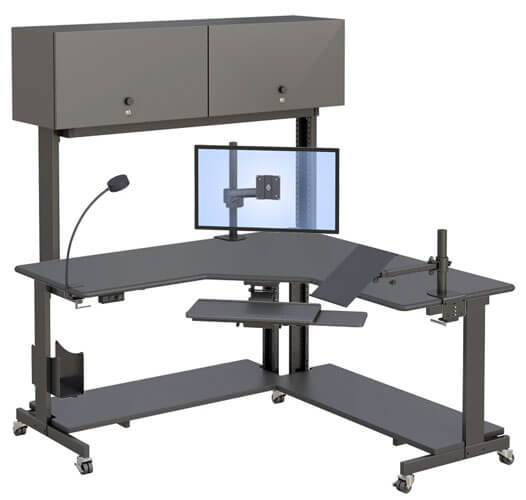
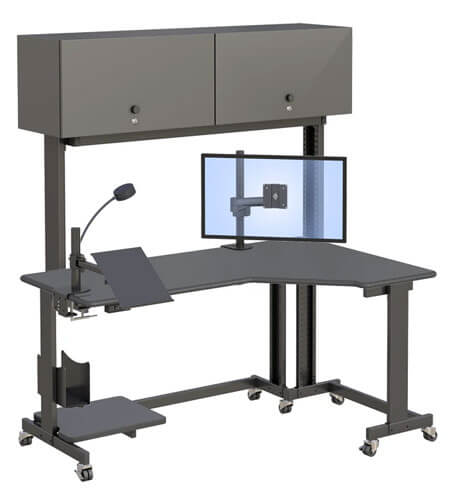
A complete AFC wall-mounted medical computer workstation may use a separate mouse tray as part of the keyboard area. The holder would give that mouse a storage location when the workstation is folded or not in use.
How Do Cable Access and Storage Position Affect Daily Use?
A wired mouse needs enough cable length to move normally during use and reach the holder afterward. If the cable is too tight, returning the mouse may pull on the computer connection or restrict tray movement.
The AFC holder has a cutout in its bottom lip for the cable. Before installation, open and close the keyboard tray while watching the complete cable path. Check that the wire does not catch on a hinge, mounting arm, wall edge, or nearby accessory.
A wireless mouse removes the cable issue, but the holder still needs to fit the device securely. The storage location should not block access to the mouse’s power switch or charging port if those features are used regularly.
Placement also affects reach. A holder mounted too far behind the workstation may require the user to lean or twist. One placed too close to the tray may interfere with opening and closing it.
Test the proposed location with the workstation in every normal position. If compatibility is unclear, contact AFC Industries before drilling holes or ordering several holders.
How Do You Choose the Right Holder and Mounting Method?
Choose a mouse holder by checking the mouse dimensions, workstation layout, cable path, user reach, and mounting surface. The best attachment method depends on whether the installation should be permanent or repositionable.
How Do You Check Whether the Mouse Will Fit?
Measure the actual mouse rather than relying only on its model description.
Record its width at the widest point, total height, and front-to-back depth. Include side buttons, thumb rests, charging connections, and other parts that change its shape.
The AFC holder is listed as 3 inches wide and 5 inches high. The product page does not clearly state whether the 3-inch figure represents the usable internal space or the full exterior width.
The holding lips can be bent to create more room for a larger mouse. However, buyers should confirm with AFC how much adjustment is intended and whether repeated bending is recommended.
For a larger purchase, test one mouse and holder together. Confirm that the device fits without excessive pressure and does not fall out when the workstation moves or folds.
The product’s technical PDF should also be reviewed through the AFC mouse holder specifications.
Should You Use Screws or Velcro?
The AFC holder has two holes that allow it to be screwed to a wall or attached beneath a compatible foldable keyboard tray. The product page also lists Velcro as an alternative.
Screws generally create a more permanent installation. They may be appropriate when the final location has been tested and the mounting surface can support the hardware.
Velcro may allow easier placement or repositioning, but its performance depends on the product used, the surface, the preparation, and the surrounding environment. Heat, moisture, cleaning products, surface texture, and repeated pulling can affect an adhesive attachment.
Do not assume that screws, anchors, or Velcro are included. Confirm the required mounting materials and surface compatibility with AFC.
Healthcare facilities should also verify whether the selected attachment method is compatible with their cleaning procedures. CDC guidance recommends following manufacturer instructions when cleaning healthcare equipment and environmental surfaces.
Where Should the Holder Be Positioned for Comfortable Reach?
The holder should be easy to reach without forcing the user to lean, twist, or reach behind equipment. It also needs to remain clear of the keyboard tray, monitor arm, cables, and other accessories.
There is no single correct side for every workstation. A right-handed user may prefer one location, while a left-handed user may prefer another. Shared stations may need a position that works reasonably well for both.
Test the location with representative users before final installation. Ask each person to retrieve and return the mouse while seated and standing, if the workstation supports both positions.
Then test the workstation with its keyboard tray fully open and completely folded. The mouse holder should not prevent the tray from locking or resting in its intended position.
The goal is not perfect placement for every person. It is a practical location that keeps the mouse accessible without interfering with normal workstation movement.
Where Does a Wall-Mounted Mouse Holder Make Practical Sense?
Dedicated mouse storage is most useful at compact, shared, folding, or wall-mounted computer stations. It may offer less value at a large private desk where the mouse already has a permanent surface.
Which Workspaces Benefit Most From Dedicated Mouse Storage?
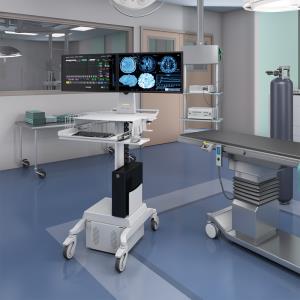
A clinical documentation station may be installed in a hallway, exam room, or administrative area where floor and surface space are limited. A wall-mounted system can keep computer equipment accessible without adding a full desk.
A shared administrative workstation may serve several employees during the day. Returning the mouse to the same location can make shift changes and workstation resets more predictable.
An industrial information terminal may use a mounted computer to display instructions or production data. A dedicated holder can keep the mouse from being placed on machinery, boxes, or nearby shelves.
A compact home workstation may also benefit when the keyboard tray folds against the wall and the mouse needs a separate storage point.
In a healthcare setting, a mouse holder should not be presented as an infection-control product unless it has supporting documentation. The product’s material and finish must be compatible with the organization’s approved cleaning process.
Current CDC environmental cleaning procedures provide broader guidance for patient-care areas. Facilities should also follow instructions from the mouse, holder, workstation, and cleaning-product manufacturers.
How Should the Holder Be Tested Before Wider Installation?
A pilot installation can identify fit, reach, cable, and cleaning problems before the same mistake is repeated across several workstations.
Use this process:
- Measure the mouse. Record its width, height, and depth.
- Choose a proposed location. Check the wall, keyboard tray, nearby equipment, and cable path.
- Select the attachment method. Confirm whether screws or Velcro are appropriate for the surface.
- Install one holder. Follow AFC’s instructions and the requirements of the selected mounting hardware.
- Test the mouse fit. Make sure the mouse enters and leaves the holder without excessive pressure.
- Test the cable movement. For a wired mouse, check the cable while the device is used, stored, and returned to the tray.
- Open and close the keyboard tray. Confirm that the holder does not block the tray or nearby accessories.
- Test user reach. Ask representative users to retrieve and store the mouse.
- Confirm cleaning procedures. Verify that the holder and attachment method can be maintained using approved products and instructions.
If the pilot reveals a problem, adjust the position or mounting method before installing additional units. AFC’s workspace specialists can help confirm product and mounting details.
Frequently Asked Questions
What Is a Mouse Holder Used For?
A mouse holder gives a computer mouse a dedicated storage location when it is not being used. It can help clear a keyboard tray and keep the mouse easy to find at a shared workstation.
Is a Mouse Holder the Same as a Mouse Tray?
No. A mouse holder stores the device between uses, while a mouse tray provides a flat surface for operating it.
Will a 3-Inch Mouse Holder Fit My Mouse?
It depends on the mouse’s dimensions and the holder’s usable internal width. Measure the actual device and compare it with AFC’s technical drawing before ordering.
Can a Mouse Holder Be Attached With Velcro?
The AFC product page lists Velcro as an attachment option. Suitability depends on the specific Velcro product, mounting surface, cleaning process, temperature, and installation instructions.
How Should a Mouse Holder Be Cleaned?
Follow AFC’s cleaning instructions and use products approved for the holder’s material and finish. Healthcare facilities should also follow their infection-prevention policies and the cleaning-product label.