


Is Your CPU Box Ready for the 2026 PC Refresh?
Microsoft ended general support for Windows 10 on October 14, 2025. Since then, many businesses have upgraded existing computers or replaced older hardware that could not meet Windows 11 requirements.
The replacement cycle has continued into 2026. Gartner reported that business demand during the first quarter was supported partly by delayed Windows 11 migrations and upgrades to newer computers. For IT departments, this creates a long list of deployment questions involving software, security, compatibility, and cost.
One smaller question is easy to miss: where will the new desktop tower go?
A computer that does not fit its existing holder or enclosure can delay an otherwise well-planned rollout. A tower squeezed inside the wrong box may also have blocked ventilation, crowded cables, or poor service access.
A CPU box can provide an added layer of physical protection, but it must be selected carefully. The enclosure needs to fit the actual computer, provide access to its connections, support airflow, and allow authorized technicians to reach the hardware when necessary.
What Should a CPU Box Protect During a 2026 PC Rollout?
A locking CPU box can discourage quick removal, casual tampering, and unauthorized physical access to a desktop computer. It cannot replace passwords, encryption, endpoint protection, access policies, or other digital security measures.
What Does a Locking CPU Box Actually Protect?
The term “CPU box” is commonly used to describe an enclosure for a desktop computer tower. Technically, the CPU is only the processor inside the computer, but the broader meaning is widely used when discussing computer furniture and accessories.
A locking enclosure places a physical barrier around the tower. This can be useful in areas where a computer is accessible to visitors, students, patients, contractors, or employees who do not need access to the hardware.
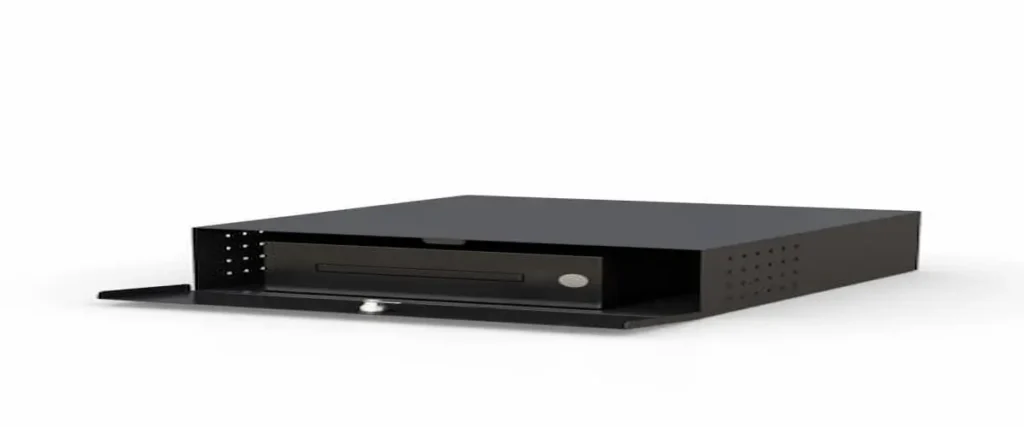
The AFC horizontal CPU locking box uses a solid steel structure with a hinged, lockable door. Its purpose is to restrict direct access to the enclosed computer and discourage unauthorized removal or interference.
That protection has limits. A locked box does not encrypt files or stop someone from attempting to access the computer through its software. It also does not guarantee that the entire enclosure cannot be moved or damaged.
CISA recommends keeping devices in secure physical areas when they are not under a user’s direct control. Its physical security guidance for digital devices treats locks and secure storage as parts of a broader security plan.
Which Features Matter Most in a CPU Box?
A lock may be the most noticeable feature, but it is not the only detail that matters. Check these five areas before choosing an enclosure:
- Interior fit: The tower needs enough space for its body, feet, handles, buttons, and connected cables.
- Controlled access: Authorized IT staff should be able to open the enclosure for maintenance without making the computer easily accessible to everyone.
- Ventilation: The enclosure should not block the computer’s air intake or exhaust areas.
- Cable access: Power, network, monitor, keyboard, mouse, and accessory cables need a clear route.
- Supported placement: The enclosure must be installed according to the manufacturer’s instructions and the conditions of the workspace.
The AFC box includes mesh ventilation sections and a rear grommet hole for cable routing. A grommet is a finished opening that allows wires to pass through an enclosure while helping keep them organized.
These features are useful only when they align with the computer. For example, mesh on one side will not provide effective airflow if the tower’s exhaust vent is pressed against a solid surface.
How Should Keys and Technician Access Be Managed?
A locked computer enclosure can create a different problem when no one knows who has the key.
Before installing several CPU boxes, decide who will control the keys, where spare keys will be stored, and how technicians will request access. Record which key belongs to each enclosure if the locks are not identical.
The process does not need to be complicated. A small organization might keep labeled spare keys in a restricted cabinet. A larger IT department may track them through an asset or facilities management system.
Authorized staff should also be able to open the enclosure without moving the entire workstation. Check the direction in which the door swings and make sure nearby walls, equipment, or furniture will not block it.
The UCSF physical security guidelines recognize locked cabinets and doors as possible ways to restrict access to computers. The same guidance makes clear that physical locks should be combined with appropriate digital and administrative controls.
How Can You Tell Whether a CPU Box Fits Your Computer?
Measure the fully configured computer tower, identify its vents and connections, and compare those details with the enclosure’s technical drawing. Do not order a CPU box based only on the computer’s product category or model name.
What Should You Measure Before Ordering?
Measure the actual computer that will be installed. Retail listings sometimes round dimensions or exclude protruding feet, handles, brackets, and connected cables.
Use the following process:
- Measure the tower’s full width.
- Measure its height, including feet or handles.
- Measure its depth, including front controls.
- Add the space required by rear power, network, and display connectors.
- Note where air enters and exits the computer.
- Check whether the power button and ports must remain accessible.
- Compare everything with the enclosure drawing.
Do not assume that two computers from the same manufacturer use the same case. A small-form-factor PC, standard tower, and workstation tower can have very different dimensions.
The product page for the AFC CPU security box links to a technical PDF. Review that drawing and confirm the usable interior dimensions with AFC before ordering.
How Do You Check Ventilation and Cable Clearance?
Start by locating the computer’s air intake and exhaust areas. These may be on the front, back, side, top, or bottom of the tower.
The computer should not be pressed tightly against the enclosure. It needs appropriate clearance based on the computer manufacturer’s instructions. Avoid inventing a universal measurement because cooling designs vary among models.
Next, connect the power, network, monitor, and peripheral cables. Some connectors extend several inches beyond the back of the computer and require room to bend without being crushed.
The AFC box includes a rear grommet for wire access. Before deployment, confirm that the grommet can accommodate the number and thickness of cables used by the workstation.
Test the computer under its normal workload after installation. Watch for unexpected fan noise, heat warnings, disconnected cables, or other signs that the configuration needs attention. Mesh ventilation supports airflow, but it cannot compensate for a blocked computer vent or unsuitable room conditions.
For help confirming product fit and installation requirements, contact AFC Industries before placing a larger order.
Should You Use a Box, Cable Lock, or Open CPU Holder?
The right choice depends on the environment and the kind of physical access you need to restrict.
A locking CPU box surrounds the tower and limits direct access. It may be appropriate in a public-facing or shared area where unauthorized users could reach the computer.
A security cable attaches the computer to a fixed or heavy object. It can discourage quick removal while leaving the tower more accessible for maintenance and airflow.
An open CPU holder supports or elevates the tower but does not necessarily restrict access. It may be useful when the main goal is organization, floor clearance, or equipment positioning.
A private office with controlled access may not need a full enclosure. A public service counter, testing room, or unattended workstation may justify more restricted hardware access.
Arizona State University’s physical security recommendations include cable locks, secure locations, and screen-locking practices. These measures can be combined according to the risk and workspace.
Where Does a Locking CPU Box Make Practical Sense?
A locking enclosure is most useful where desktop computers are easy to reach, regularly unattended, or installed in areas used by people who do not need hardware access.
Which Workplaces Benefit Most From Restricted Computer Access?
A healthcare administrative station may be used by authorized staff but remain visible or accessible to patients and visitors. A locking enclosure can add a physical barrier around the tower, although it does not create HIPAA compliance by itself.
A school testing room may contain several computers used by different students. Restricting access to the towers can discourage casual interference with cables and hardware.
A public service counter may leave a computer unattended between shifts or outside business hours. A steel enclosure can make quick access or removal more difficult when paired with appropriate room security.
Industrial and technical workspaces may use the enclosure to separate a computer from routine contact. The enclosure still needs to match the environment, especially if the area contains dust, liquids, vibration, or unusual temperatures. The AFC box should not be described as dustproof, waterproof, or industrially rated unless supporting documentation confirms those features.
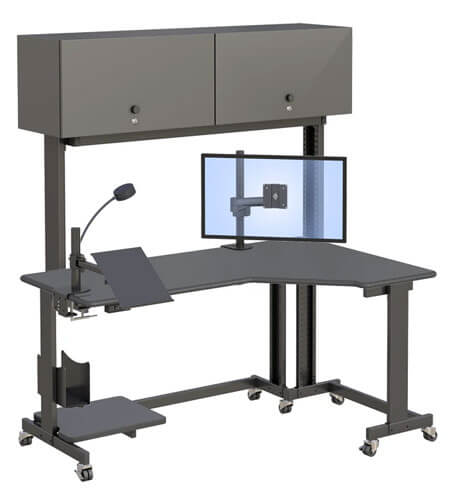
Organizations planning equipment-heavy workstations can also review AFC’s radiology office solutions for examples of computer placement in professional environments.
How Should a CPU Box Be Added to a PC Deployment Plan?
A pilot installation can catch fit and access problems before they affect dozens of computers. Use this seven-step process:
- Inventory the desktop models. Record the exact computer models included in the rollout.
- Measure a configured tower. Include feet, handles, brackets, and connected cables.
- Mark vents and connections. Identify air intake, exhaust, power, network, display, and peripheral locations.
- Compare the tower with the enclosure drawing. Confirm interior fit and operating clearance.
- Verify the installation method. The AFC product is described as a desktop enclosure. Confirm wall or under-desk installation directly with AFC before using either method.
- Assign keys and maintenance access. Decide who can open the enclosure and where spare keys will be stored.
- Test one complete installation. Run the computer with all normal cables and equipment connected before approving a larger deployment.
A pilot is especially important when multiple computer models are involved. An enclosure that fits one tower may not accommodate another, even if both machines perform similar work.
Gartner expects higher component costs to encourage businesses to keep computers in service longer during 2026. Protecting new hardware physically and making it easy to maintain can therefore become part of a longer equipment lifecycle.
When you are ready to compare the enclosure with your computers, speak with an AFC technical furniture specialist.
Frequently Asked Questions
What Is a CPU Box?
A CPU box is an enclosure designed to hold a desktop computer tower. Although the CPU is technically the processor inside the computer, the term is commonly used for tower holders and security enclosures.
Does a Locking CPU Box Protect Computer Data?
A locking CPU box can restrict physical access to the computer tower, but it does not protect data by itself. Data security also requires measures such as encryption, passwords, endpoint protection, and controlled user access.
How Do I Measure a Computer for a CPU Box?
Measure the tower’s full width, height, and depth, including feet, handles, connected cables, and protruding parts. Also identify its ventilation openings and required operating clearance.
Can a Computer Overheat Inside a Locking Enclosure?
A computer may overheat if its vents are blocked or if the enclosure does not provide suitable airflow. Check the computer manufacturer’s clearance instructions and confirm that the enclosure openings align with the tower’s intake and exhaust areas.
Is a CPU Box Better Than a Security Cable?
A CPU box restricts direct access to the tower, while a security cable mainly discourages removal. The better choice depends on the environment, physical risk, ventilation, and maintenance requirements.