
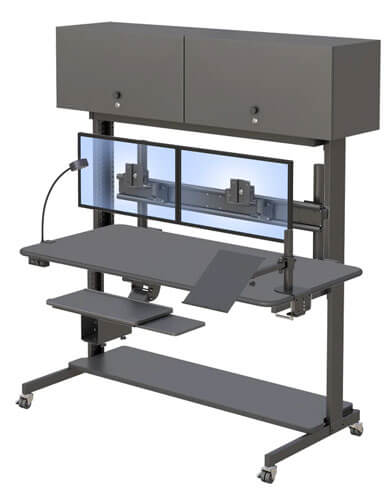
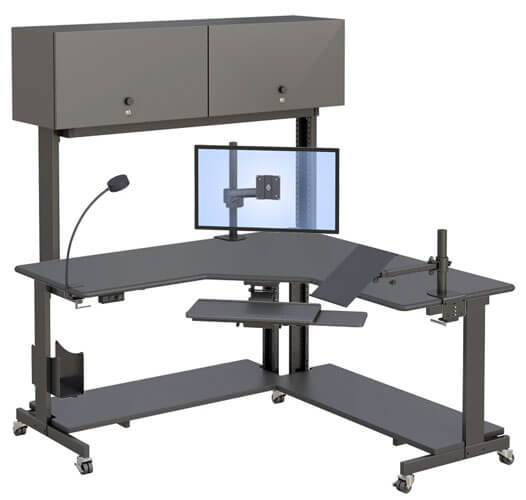
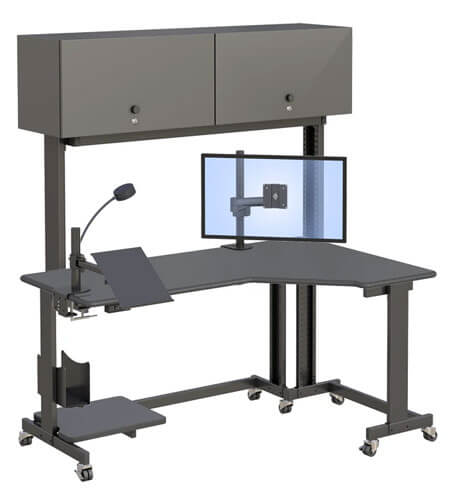
Workstation Configurator Tool for Custom Ergonomic Solutions
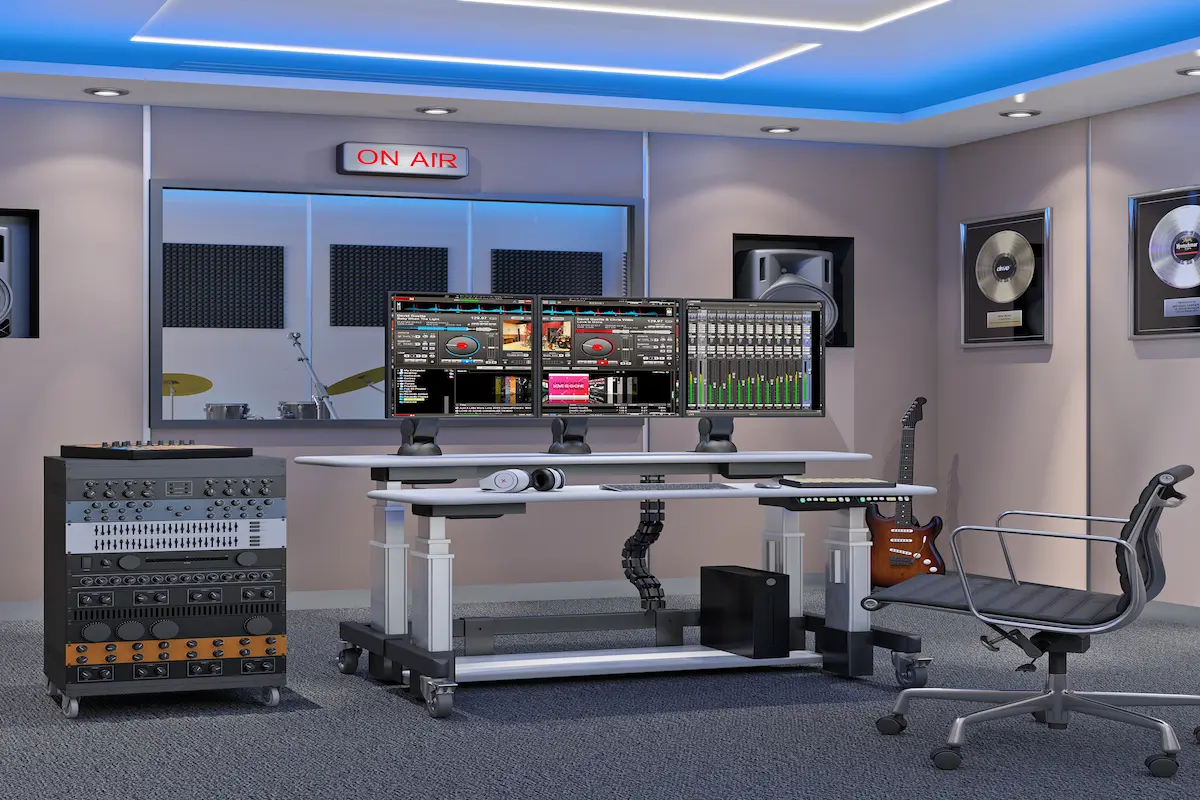
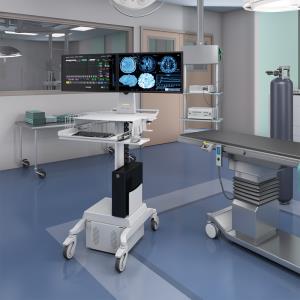
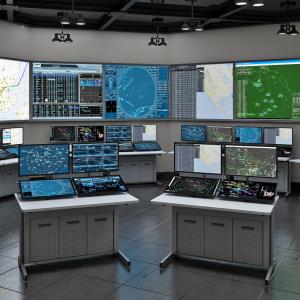
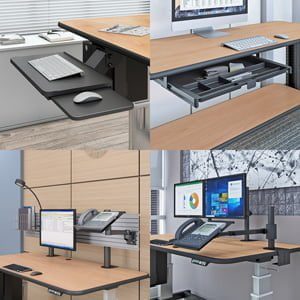
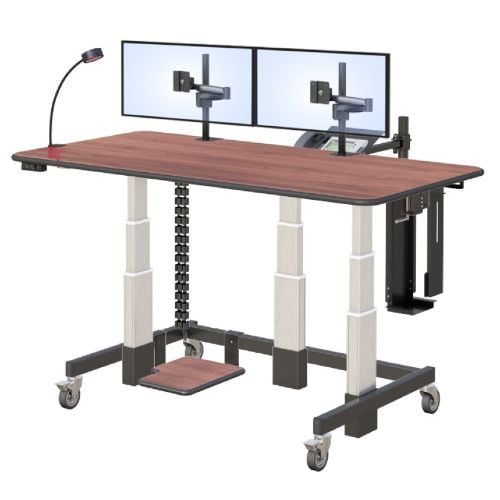
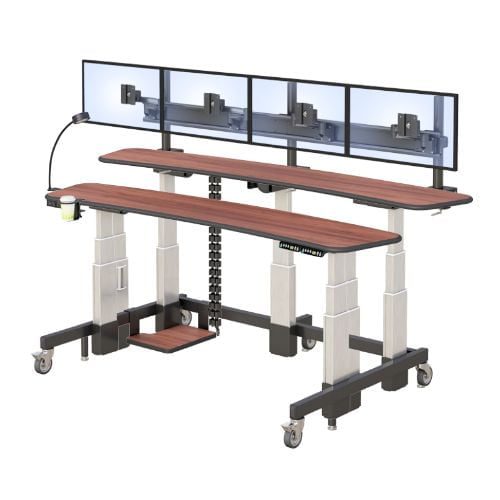
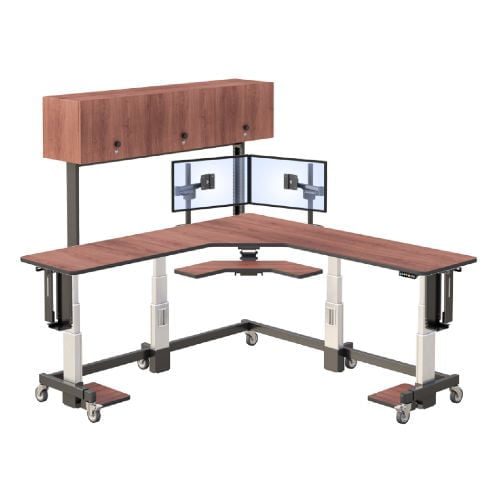
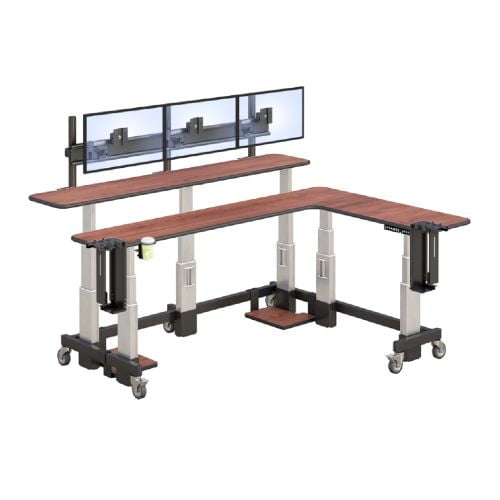
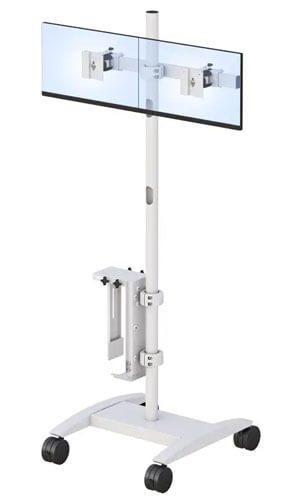
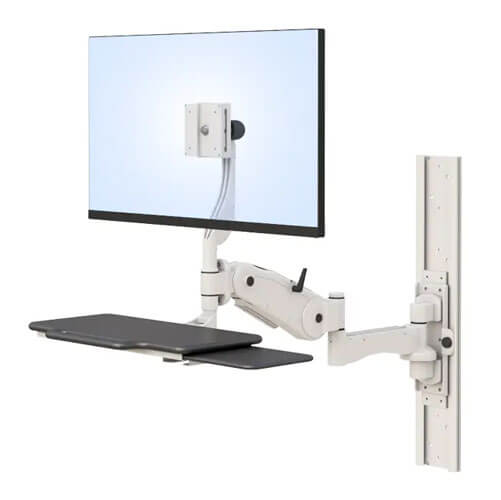
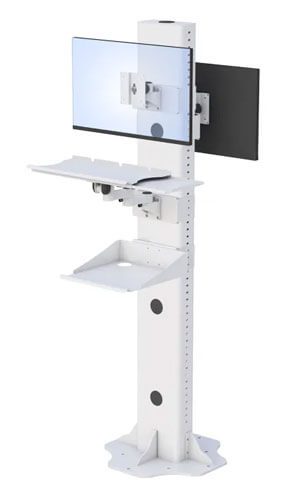
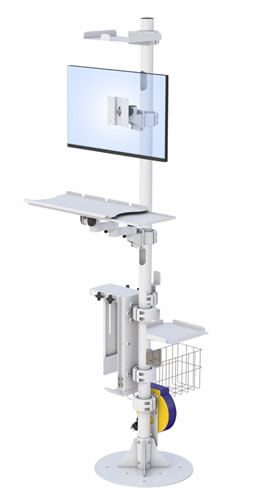
Radiology workstation configurator with multi-monitor diagnostic imaging setup
A workstation configurator is an online tool for selecting, customizing, and visualizing computer hardware to build a system for professional tasks. The workstation configurator is essential for radiology professionals, as it enables healthcare teams to select, customize, and assemble modular components for imaging setups. Proper configuration of radiology workstations is critical for diagnostic accuracy, clinician comfort, and workflow efficiency. This topic matters for radiology professionals because the right setup directly impacts patient outcomes, reduces fatigue, and streamlines daily operations.
Workstation configurators ensure compatibility among parts like motherboards, processors, and RAM, reducing technical errors. When using a workstation configurator, consider defining your primary workload to align components with performance needs. This tool ensures compatibility between hardware elements while providing real-time visualization of the final design. Users can choose and configure components to match their specific professional needs, tailoring each workstation for optimal performance. For imaging environments, it addresses critical needs like ergonomic furniture selection, multi-monitor display arrangements, and PACS integration.
This guide covers medical workstation configuration tools specifically designed for radiology departments. It excludes general IT hardware setup and focuses on solutions that meet diagnostic imaging requirements. Many companies offer customizable options for workstations, making the process easier for users to build a setup that fits their workflow. Radiology department managers, IT administrators, and medical equipment specialists will find actionable insights here.
What exactly does a workstation configurator do? It guides users through selecting compatible components—from height-adjustable frames to monitor arms—validates each choice against technical requirements, and generates manufacturing-ready specifications. Creating an account on the configurator platform is important, as it allows you to manage configurations, track orders, and access related documents. This matters because improper configurations lead to clinician fatigue, workflow disruptions, and costly equipment mismatches.
By reading this article, you will gain:
- Clear understanding of configurator benefits for imaging workflows
- Selection criteria for choosing the right product configurator tool
- Step-by-step implementation process
- Optimization strategies for New York-based facilities
- Solutions to common configuration challenges
Understanding Custom Workstation Configurators
A workstation configurator combines front-end visualization with back-end rules engines. The front-end provides 3D previews and real-time feedback. 3D visualization in workstation configurators helps optimize setup for space, ergonomics, and accessibility. The back-end enforces compatibility logic, manages dependencies, and integrates with procurement systems. Together, they eliminate guesswork from complex equipment decisions.
Workstation configurators ensure compatibility among parts like motherboards, processors, and RAM, reducing technical errors. For radiology workflows, this translates to workstations designed for 8-12 hour diagnostic shifts. Radiologists require specific display configurations, ergonomic positioning, and reliable hardware performance. Specialized radiology desks and imaging workstations ensure these clinical requirements are supported, and a configurator ensures all these factors work together seamlessly.
Industrial Product Configurator Foundation
An industrial product configurator differs from consumer-focused tools. While a sofa builder might prioritize color schemes and aesthetics, an industrial configurator enforces technical constraints like load-bearing capacity and ESD-safe surfaces. Medical equipment demands this rigor.
In healthcare settings, industrial configurators address specialized requirements. They validate that gantry frames support selected monitor weights. They ensure base cabinets accommodate power requirements for Intel Core or NVIDIA-powered systems. They check that accessories fit within available stock options.
Product Configurator Tool Features
Modern product configurator tools offer features specifically valuable for medical workstation configuration:
- Plausibility checks flag errors before order submission
- 3D visualization allows rotation and inspection from multiple angles
- Dependency management prevents incompatible component combinations
- Integration capabilities connect with hospital ERP and procurement systems
- Software selection lets users choose from a variety of software options to be installed on their custom workstations
These features build a logical bridge between abstract requirements and physical workstations. Healthcare facilities across New York increasingly rely on such tools to streamline equipment acquisition. For organizations seeking expert guidance on ergonomic solutions, AFC Industries provides comprehensive resources on configuring medical environments.
Transition: With a clear understanding of how custom workstation configurators function, let’s explore their specific applications in radiology environments.
Radiology Workstation Configuration Applications
Building on configurator fundamentals, radiology applications present unique challenges. Diagnostic imaging workflows demand precision that general office setups cannot provide. Each configuration decision impacts patient care quality.
PACS Workstation Configuration
Picture Archiving and Communication Systems require specific hardware configurations. A custom workstation for PACS must handle high-resolution medical images efficiently. Configuration factors include:
- SSD storage capacity (often 1TB or more)
- RAM specifications (128GB for multi-viewer setups)
- Display capabilities supporting 4K resolution
Technical support considerations also matter. Windows-based systems offer broader software compatibility, while Linux options provide flexibility for research environments. The configurator validates that selected components meet PACS vendor requirements.
Diagnostic Imaging Workstation Setup
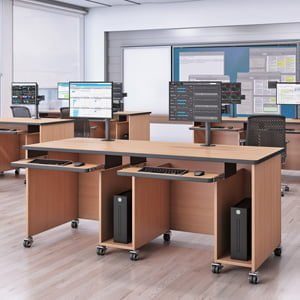
Diagnostic workstations extend beyond computing hardware. Ergonomic height-adjustable standing desks and related furniture configurations directly impact radiologist performance and health. Key elements include:
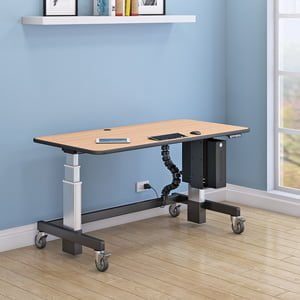
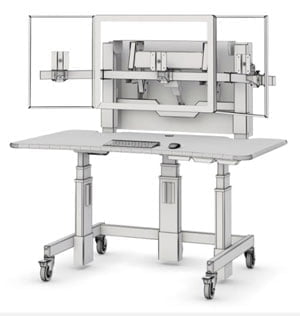
- Height-adjustable frames to accommodate different user anthropometrics
- Integrated lighting to reduce glare on displays
These elements connect directly to PACS configuration. A workstation with improper monitor positioning forces awkward viewing angles, regardless of system performance. The configurator ensures hardware and furniture work together.
Multi-Monitor Display Configuration
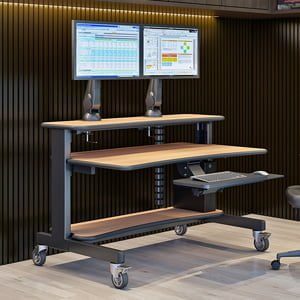
Radiologists typically require 2-8 monitor arrays for efficient image review. Configuration involves — and should be grounded in ergonomic furniture designed for radiology — the following factors:
- Monitor arm selection based on display weight and size
- Cable management for clean, organized workspaces
- Power distribution planning for multiple devices using adjustable computer floor stands and related accessories
- Viewing angle optimization for diagnostic accuracy
Getting this right matters significantly. Studies indicate 40% of radiology technicians report ergonomic issues. Proper multi-monitor configuration addresses this directly.
With these application-specific requirements in mind, let’s examine the essential hardware components that power radiology workstations.
Essential Hardware Components
Selecting the right hardware is the foundation of any custom workstation designed for radiology imaging. The right choices ensure smooth workflow, high diagnostic accuracy, and long-term reliability.
Why Hardware Selection Matters in Radiology
Radiology imaging environments demand high-performance, reliable, and scalable hardware. The ability to process large imaging datasets, run complex diagnostic software, and support multiple high-resolution displays is essential for accurate and efficient patient care. Choosing the right components ensures that radiologists can work without lag, delays, or technical interruptions.
CPU Selection
The central processing unit (CPU) is a critical component, with options like Intel Core Ultra and Intel Xeon processors delivering the power and performance needed for demanding diagnostic applications. When configuring a workstation, it’s important to ensure the CPU can handle large imaging datasets and complex software tasks without lag.
Memory and Storage
Memory is another key factor—opting for high-speed RAM, such as 32GB DDR5-5200, ensures smooth multitasking and rapid access to patient files. Storage solutions also play a vital role; a fast SSD (solid-state drive) not only accelerates data access but also improves overall system responsiveness, which is essential when working with high-resolution medical images.
Graphics Card Considerations
For advanced visualization and 3D rendering, a high-performance graphics card like the NVIDIA RTX 4060 is indispensable. This hardware enables radiologists to view and manipulate images with precision and clarity. When selecting these components, it’s crucial to consider compatibility, power requirements, and future scalability.
The workstation configurator streamlines this process, helping users select the right options to ensure their custom workstation meets the rigorous demands of radiology imaging environments.
Transition: Once the essential hardware is selected, the next step is to determine the best workstation form factor for your radiology department’s needs.
Workstation Form Factors in Radiology
Radiology departments require workstations that fit seamlessly into their unique environments, and choosing the right form factor is essential.
Overview of Form Factor Options
| Form Factor | Best For | Key Features |
| Full Tower | High-end, performance-intensive applications | Ample space for multiple GPUs, large RAM, extensive storage, maximum expandability |
| Compact Workstation | Small reading rooms, mobile setups | Space-saving, portable, suitable for limited hardware expansion |
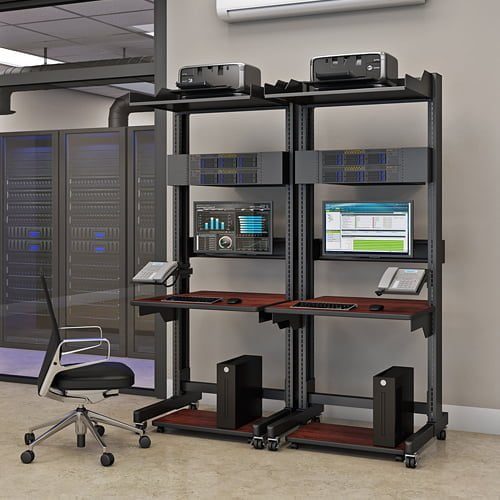
| Rack-Mounted | Centralized server rooms, shared access | Integrates into server racks, supports multiple users, centralized management |
Choosing the Right Form Factor
The choice of form factor should be guided by:
- Available space
- Cooling requirements
- Number of users who need access to the system
By carefully considering the department’s workflow, software requirements, and performance expectations, radiology professionals can select a workstation form factor that ensures reliability, efficiency, and ease of use. The configurator tool helps match the right hardware and software to the chosen form factor, ensuring all components work together to deliver optimal results.
Transition: After selecting the appropriate form factor, it’s important to address power and cooling considerations to maintain workstation performance and longevity.
Power and Cooling Considerations
Reliable power and effective cooling are essential for maintaining the performance and longevity of a custom workstation in radiology settings.
Power Supply Selection
The power supply unit (PSU) must be robust enough to support all hardware components, including high-performance CPUs, GPUs, and multiple storage devices. Choosing a high-wattage, energy-efficient PSU—such as one rated 80 PLUS Gold—ensures stable operation and helps reduce energy costs for customers.
Cooling Solutions
Cooling is equally important, as radiology workstations often run intensive applications for extended periods. An efficient cooling system, featuring quality fans, heat sinks, or even liquid cooling solutions, is necessary to prevent overheating and maintain consistent performance. Good airflow design and organized cable management within the system also contribute to lower temperatures and quieter operation.
By prioritizing power and cooling considerations during the configuration process, customers can ensure their custom workstation delivers reliable performance, minimizes downtime, and protects valuable hardware investments. The configurator assists in selecting compatible power and cooling options tailored to the specific needs of radiology imaging environments.
Transition: Beyond hardware, acoustic and ergonomic considerations are vital for creating a comfortable and productive radiology workspace.
Acoustic and Ergonomic Considerations
In radiology departments, a quiet and comfortable workspace is essential for maintaining focus and reducing fatigue during long diagnostic sessions.
Acoustic Considerations
Selecting components and enclosures designed for low noise output—ideally below 25 dBA—helps minimize distractions and creates a more pleasant working environment for customers.
Ergonomic Considerations
Proper placement of displays, keyboards, and mice can prevent repetitive strain injuries and enhance productivity. Adjustable chairs, desks, and monitor arms allow users to customize their setup for maximum comfort. Good lighting and thoughtful workspace design further contribute to a healthy and efficient work environment.
Addressing both acoustic and ergonomic issues during the configuration process ensures that radiology professionals can work comfortably and efficiently, ultimately improving patient care. The workstation configurator can recommend solutions that balance performance with user well-being, helping customers create a workspace that supports both their technical and personal needs.
Transition: As technology and workflows evolve, scalability and upgradability become crucial for long-term workstation value.
Scalability and Upgradability
Future-proofing is a key consideration when investing in a custom workstation for radiology. As imaging technology evolves and software requirements change, the ability to scale and upgrade hardware becomes increasingly important.
Modular Design and Compatibility
A modular workstation design allows for easy access to components, making it simple to upgrade the CPU, graphics card, or storage as needed. Compatibility with both Windows and Linux operating systems ensures flexibility in software choices and integration with existing hospital systems.
By selecting a system that supports the latest applications and updates, customers can adapt to new workflows and technologies without the need for frequent replacements. Scalability and upgradability not only protect the initial investment but also provide customers with the flexibility to change or expand their workstation as their needs evolve over time.
The configurator makes it easy to select hardware and software options that meet current requirements while allowing for future growth, ensuring the workstation remains a valuable asset for years to come.
Transition: With the right hardware and scalability in place, the next step is to implement the workstation configurator effectively in your facility.
Workstation Configurator Implementation Process
With radiology applications understood, implementation becomes the next logical step. A systematic approach prevents costly mistakes and ensures successful deployment.
Configuration Workflow Process
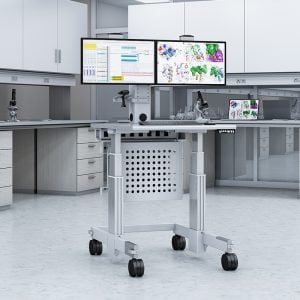
Use this systematic configuration approach when establishing new imaging workstations or upgrading existing setups, including any ancillary mobile computer carts for flexible workflows:
- Assessment – Document current equipment, identify pain points, gather user requirements
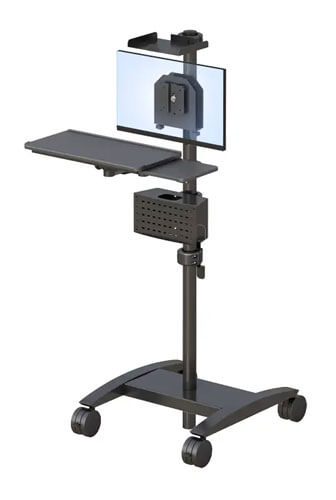
- Planning – Select configurator platform, define technical specifications for assets such as portable medical computer pole carts, establish budget
- Configuration – Choose components based on specific software requirements, such as high core counts for rendering or high clock speeds for CAD. Choosing the CPU and GPU first is important, as this determines the power supply and motherboard needs in a workstation build. Build workstation specifications, verify compatibility, generate quotes
- Testing – Validate configurations meet workflow needs, including any mobile laptop cart workstations, and check vendor availability
- Deployment – Order components, coordinate installation, provide staff training
Configurator Tool Comparison
| Criterion | Cloud-Based | On-Premise | Hybrid |
| Implementation Time | 2-4 weeks | 2-3 months | 1-2 months |
| Best Use Case | Multi-site facilities | High-security environments | Balanced needs |
| Key Features | Remote access, automatic updates | Full control, customization | Flexibility, local processing |
| Technical Support | Vendor-managed | Internal IT required | Shared responsibility |
| For New York healthcare facilities, hybrid solutions often fit best. They balance security requirements with accessibility needs. Consider factors like existing IT infrastructure and compliance requirements when making this choice. To explore options tailored to your facility, request a free catalog from AFC Industries. |
Transition: Even with a solid implementation plan, common challenges can arise. Let’s review how to address them effectively.
Common Challenges and Solutions
Configuration projects encounter predictable obstacles. Addressing them proactively ensures smoother implementation.
Integration Complexity
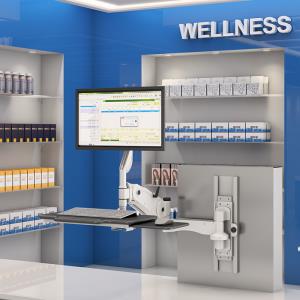
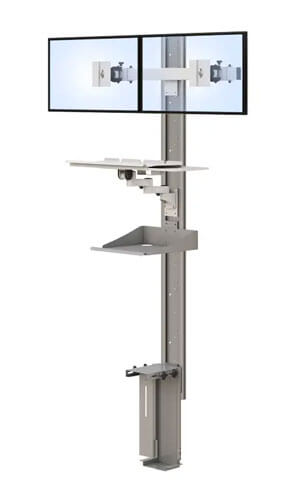
Hospital systems rarely exist in isolation. Connecting a new configurator with existing infrastructure requires careful planning, particularly when designing space-efficient wall-mounted workstations for clinical areas. Work with vendors who provide API documentation and tested integration protocols. Ensure the configurator supports your current ERP platform before committing.
User Training, Adoption, and Technical Support
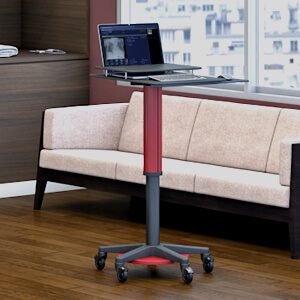
Staff resistance often stems from unfamiliarity. Provide hands-on training sessions within the first month of deployment that incorporate tools like mobile tablet carts for patient interaction. Create quick-reference guides for common configuration tasks. Designate power users who can offer peer support.
Compliance and Security Requirements
HIPAA mandates encrypted data handling. Medical device regulations require documentation of configuration decisions and secure access to endpoints such as lockable wall mount computer stations. Select configurators with built-in compliance features. Maintain audit trails for all configuration changes.
Transition: With challenges addressed, you’re ready to take the next steps toward optimizing your radiology imaging environment.
Conclusion and Next Steps
A workstation configurator transforms how radiology departments acquire and optimize imaging equipment. It reduces configuration errors, ensures component compatibility, and provides visualization that builds confidence in purchasing decisions.
Take these immediate next steps:
- Assess your current workstation setup and document improvement needs
- Evaluate available configurator options based on your facility’s requirements
- Plan an implementation timeline that includes training and testing phases
Related topics worth exploring include ergonomic considerations for extended diagnostic sessions, workflow optimization strategies, and preventive equipment maintenance. For additional guidance on creating optimal imaging environments, visit the AFC Industries blog for industry insights.
Frequently Asked Questions
What factors affect workstation configurator pricing?
According to discussions on Reddit’s r/radiology community, costs vary based on feature complexity, integration requirements, and vendor support levels. Basic tools start around $50K, while comprehensive solutions with full tower hardware options reach $500K.
How long does workstation configurator implementation typically take?
Implementation time ranges from 2 weeks for cloud-based solutions to 3 months for on-premise systems. This question appears frequently in Quora discussions about medical equipment procurement.
Can workstation configurators integrate with existing hospital systems?
Yes, modern configurators connect with ERP, CRM, and procurement platforms. Integration success depends on API compatibility and vendor cooperation. People Also Ask results on Google consistently highlight this concern.
What training do staff require for workstation configurator adoption?
Most users need 4-8 hours of initial training. Ongoing support through technical documentation and email access to vendor specialists ensures continued proficiency.
Are workstation configurators compatible with both Windows and Linux systems?
Most configurators support both operating systems. Verify specific compatibility with your selected hardware and imaging software before purchase.
Which processors and components are available for workstations?
Leading workstation configurators allow you to configure systems with AMD EPYC, AMD Ryzen, and Intel Xeon processors. DDR5 memory, NVIDIA’s Quadro Graphics Technology, and RTX 4060 graphics cards are also available for high-performance needs.
Which vendors offer customizable workstation options?
Puget Systems, Origin PC, hp, Joule Performance, and ETB Tech all provide customizable workstations. ETB Tech, in particular, lets users configure their own workstations from a wide selection of components to meet specific requirements.
Do workstation configurators offer touch interfaces?
Some workstation configurators feature touch interfaces, making it easier and more intuitive to configure and interact with your workstation setup.
What should I consider when choosing CPU specifications?
High core counts in the CPU are beneficial for rendering and data analysis tasks, while high clock speeds are advantageous for design applications.
How important are power supplies and cooling solutions?
For professional workstations, prioritize stability and efficiency in power supplies and cooling solutions to ensure reliable and consistent performance.
How do configurators ensure HIPAA compliance?
Compliant configurators feature encrypted data transmission, access controls, and audit logging, which should extend to physical solutions like wall mounted lockable workstations. Always verify compliance certifications before implementation.
For personalized guidance on radiology workstation solutions, contact AFC Industries to discuss your facility’s specific requirements or evaluate wall-mounted computer stations for modern work environments as part of your configuration.
Call us at: +1 (800) 663-3412 or E-mail us directly at: afcsales@afcindustries.com