


Does a Wall Mount Enclosure Belong in the Cybersecurity Conversation?
Cybersecurity programs spend plenty of time on passwords, software updates, encryption, and network monitoring. Those controls matter, but the computer running the software still occupies a physical location.
In a shared office, clinical documentation area, training room, or monitoring station, an exposed computer tower can be bumped, unplugged, opened, or removed. A wall mount enclosure may help limit some of those physical risks while keeping the computer off the floor or work surface.
That does not make the enclosure a cybersecurity system. A steel door cannot stop malware, stolen credentials, vulnerable software, or an attack arriving through the network.
The right way to evaluate an enclosure is to separate physical protection from digital security. Buyers should then examine equipment fit, wall structure, airflow, cables, locks, and maintenance access before placing an order.
What Should You Check Before Choosing a Wall Mount Enclosure?
The enclosure and computer must be evaluated as one installed system. Exterior cabinet measurements alone cannot confirm that a computer will fit or operate correctly.
Use these seven checks before choosing a configuration.
1. Will the computer fit inside the usable space?
Measure the computer tower’s height, width, and depth in the orientation planned for installation. Include its feet, handles, buttons, and protruding components.
Then account for the power cord, display cable, USB connections, network cable, and any adapters attached to the rear. A plug can add several inches to the computer’s effective depth.
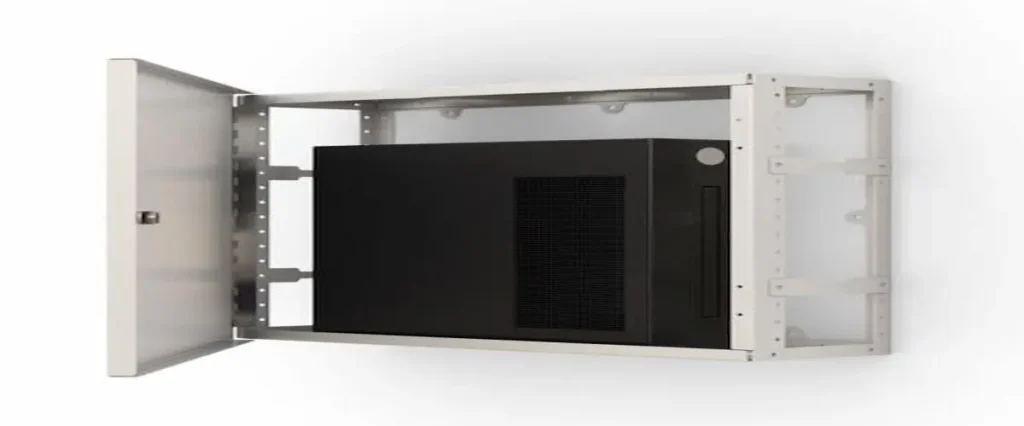
The AFC Multi-Purpose Wall-Mounted CPU Enclosure Cabinet lists dimensions of 15.5 inches high, 18 inches wide, and 5 inches deep. The page does not clearly say whether these are interior or exterior dimensions.
Ask AFC for the usable internal measurements before comparing the cabinet with a particular computer.
2. Can the enclosure and wall support the weight?
Find the computer’s working weight with its installed drives, graphics card, power supply, and other components. Add any equipment or hardware placed inside the cabinet.
AFC does not publish a numerical load capacity on the product page. The allowable load may also depend on the wall structure, mounting hardware, and installation method.
Have facilities staff or a qualified installer review the proposed wall. A flat appearance does not prove that a wall can support an enclosure and computer safely.
3. Where does the computer draw in and release air?
Desktop computers normally use fans and case openings to pull in cooler air and release heat. Those openings should not be blocked by the cabinet, wall, cables, or another device.
The AFC enclosure has ventilation holes, but passive openings do not guarantee suitable temperatures for every computer. A compact office PC and a high-powered workstation may generate very different amounts of heat.
Check the computer manufacturer’s temperature and clearance requirements. Ask AFC whether thermal testing, fan options, or recommended clearance information is available for the selected configuration.
4. Can all required cables enter without blocking airflow?
List every cable connected to the computer. Include power, displays, USB devices, network connections, audio equipment, and peripherals.
The AFC cabinet includes cable inlet holes. Buyers should confirm their size and position, especially when the computer has large plugs or several display connections.
Allow enough space for a natural cable bend. A sharp bend can place stress on a connector, while a tightly packed bundle may obstruct ventilation or make future service difficult.
5. What does the lock actually restrict?
The AFC page describes a steel door with a key-operated lock and small steel covers that block access to key portals. Elsewhere, the page refers to lockable access as an optional configuration.
Confirm whether the lock is standard on SKU 772445 and model CPU910-5-18-15.5-V01.
A lock may help discourage casual access to the computer case. Its effectiveness depends on the cabinet design, exposed ports, cable openings, wall attachment, key control, and surrounding environment.
Do not describe the enclosure as theft-proof or tamper-proof. It is more accurate to say that a confirmed lockable configuration provides a physical barrier and may help limit casual access.
6. Can IT service the computer?
A secured computer still needs maintenance. IT staff may need to press the power button, connect a temporary device, replace a component, clean an intake, or remove the computer.
Check the direction in which the cabinet door opens and the room required to use it. Determine whether the computer slides out, lifts out, or must be disconnected before removal.
Restricting all ports may support one security objective but frustrate routine service. Decide which controls and connectors should remain available to authorized users.
7. Does the installation location suit the workflow?
Keep the enclosure away from locations where an open door could block a walkway or strike nearby equipment. Consider heat sources, moisture, dust, cleaning activity, and the possibility of accidental contact.
The computer should also remain close enough to its monitor and peripherals for practical cable routing.
A wall mount enclosure can preserve floor space, but it should not create a new obstacle at shoulder, head, or cart height.
What Can a Lockable Enclosure Protect?
A lockable enclosure can address physical exposure. It may help reduce accidental impact, discourage casual opening, limit access to selected ports, or make equipment removal more difficult.
NIST has discussed cabinets, locks, and enclosures as forms of physical equipment protection. That does not mean every locked cabinet meets a particular security standard.
Its real value depends on the risk being addressed.
For example, a locked cabinet may be useful when a computer is installed in a shared room where only IT personnel should open the case. It may be less useful in a locked technical room where authorized staff need frequent access and cooling is the larger concern.
A physical enclosure does not replace:
- User authentication
- Endpoint security software
- Operating-system updates
- Encryption
- Network segmentation
- Access logging
- Backups
- Monitoring
- Incident-response procedures
Physical and digital controls can support each other, but they solve different problems.
Is an Enclosure Better Than an Open CPU Holder?
An enclosure is not automatically better than an open mount. The right option depends on access, airflow, service frequency, security needs, and available space.
An open CPU holder may provide easier cooling and maintenance. It can keep a computer off the floor without surrounding it with panels and a door. AFC offers other CPU holder configurations for buyers who do not need full physical coverage.
A lockable enclosure may be more appropriate when the computer is installed in a shared or publicly accessible area. It can provide greater coverage and more control over who opens the computer case.
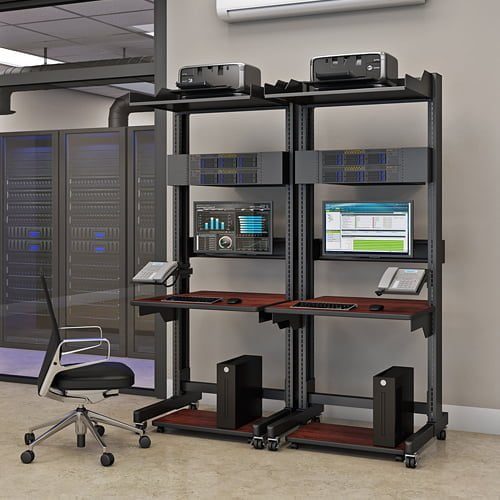
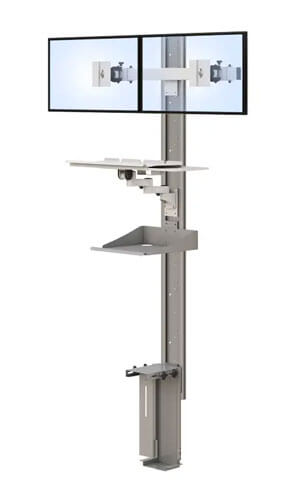
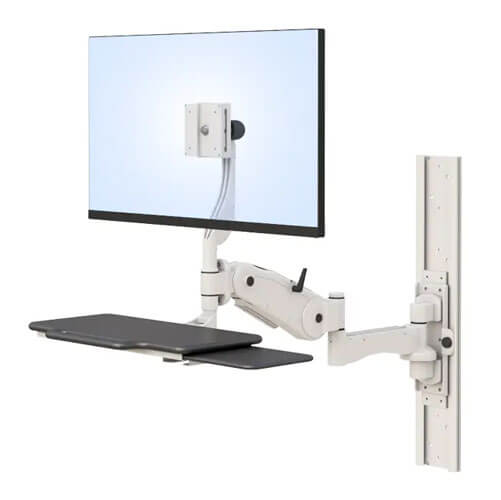
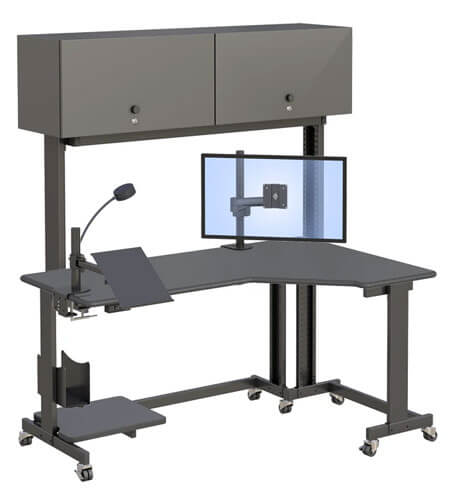
An IT rack may be a better choice when several network devices, power components, and patch connections need to be managed together. A complete wall-mounted computer workstation may suit a room that needs integrated support for the monitor, keyboard, mouse, and computer.
Choose the least complicated option that addresses the actual risk and workflow.
Where Can a Wall-Mounted CPU Enclosure Make Sense?
Shared clinical documentation area
A wall-mounted enclosure may keep a computer off the floor and limit casual case access. The facility must still review cleaning instructions, temperature, cable routing, wall structure, and internal policies.
The product should not be described as clinically approved or compliant with a healthcare standard unless AFC supplies the relevant documentation.
Public-facing administrative station
A computer used at a reception or service counter may be exposed to foot traffic and unauthorized physical contact. An enclosure could create separation between the equipment and the public while preserving work-surface space.
Port access and power controls should be planned around the employee’s daily tasks.
Industrial monitoring station
A monitoring computer may need a fixed location near a display or control interface. An enclosure could protect it from accidental contact, but dust, heat, vibration, and environmental conditions require separate review.
Do not assume that a ventilated steel cabinet has an industrial ingress or environmental rating.
Training or shared office
A training room may contain equipment used by different groups. A lockable cabinet could reduce casual access to computer components between sessions.
If IT frequently changes hardware, an open mount or locked room may offer a simpler maintenance process.
How Should You Plan a Wall Mount Enclosure Installation?
Step 1: Document the computer and accessories
Record the computer manufacturer, model, dimensions, working weight, orientation, intake openings, exhaust openings, ports, and installed accessories.
Step 2: Measure connectors and service clearance
Measure the computer with its cables connected. Include space for opening the cabinet door, reaching controls, disconnecting plugs, and removing the computer.
Step 3: Map airflow and cable routes
Identify where cooler air enters and warm air exits. Plan cable paths that do not block those openings, strain connectors, or create tight bundles.
Step 4: Confirm the enclosure and wall specifications
Ask AFC to verify internal dimensions, load capacity, lock configuration, ventilation, cable openings, door clearance, wall requirements, included hardware, and warranty.
Have the mounting surface and installation method reviewed by a qualified person.
Step 5: Install and test the completed setup
Follow AFC’s installation instructions and the computer manufacturer’s requirements. Test the lock, door, cables, ports, stability, and computer temperature during normal work.
For assistance, contact AFC Industries with the computer model, measurements, weight, wall information, and access requirements.
Frequently Asked Questions
What is a wall mount enclosure?
A wall mount enclosure is a cabinet attached to a wall that houses computer hardware or another device. Depending on its design, it may provide physical coverage, ventilation, cable openings, and lockable access.
What should I look for in a wall-mounted CPU enclosure?
Check internal dimensions, load capacity, ventilation, cable access, lock coverage, door clearance, service access, wall requirements, and installation hardware. Compare those details with the exact computer model.
Does a CPU enclosure improve cybersecurity?
A CPU enclosure can support physical security by limiting access to hardware, but it does not stop malware, stolen credentials, vulnerable software, or network attacks. It should complement digital controls.
How much ventilation does a computer enclosure need?
Ventilation depends on the computer’s heat output, fan arrangement, workload, and environmental conditions. Follow the computer manufacturer’s requirements and ask the enclosure manufacturer for thermal guidance.
Can any computer tower fit inside a wall enclosure?
No. Computer towers vary widely in size, orientation, connector placement, cooling, and weight. Compare the device with the enclosure’s confirmed usable internal dimensions and capacity.
Is a lockable enclosure better than an open CPU holder?
A lockable enclosure may be better when physical access must be restricted. An open holder may be preferable when easy maintenance and less restricted airflow are more important.
What are the internal dimensions of the AFC enclosure?
The page lists dimensions of 15.5 by 18 by 5 inches but does not identify them as internal measurements. Ask AFC for usable interior dimensions before selecting a computer.
Is the AFC enclosure lock standard or optional?
The product page contains conflicting descriptions. It identifies a key-operated lock near the top but later describes lockable access as optional. Confirm the quoted configuration with AFC.
Does a wall mount enclosure require professional installation?
Professional installation may be appropriate because the enclosure, computer weight, wall structure, and mounting hardware affect safety. Follow AFC’s requirements and facility policies.
Protect the Hardware Without Overstating the Solution
A wall mount enclosure can help organize equipment, preserve floor space, and limit some forms of physical access. Its value depends on fit, airflow, wall support, cables, maintenance, and the strength of the entire installation.
Start with the exact computer and the physical risk you need to address. Then review the AFC Multi-Purpose Wall-Mounted CPU Enclosure Cabinet and confirm every critical specification before ordering.